A real setup (Studio 24c)
Photos of a real rig. The first cable, with an electric bass.
A photo walk-through of the first connection. The gear is a PreSonus Studio 24c and an electric bass. Other audio interfaces often place the jacks in a similar way. The idea, without a specific unit, is in Connect your PC and audio interface.
Please note — This page is one way to connect, from the setup we checked. The same gear can fail with a different computer, OS, driver, cable, or nearby device. Feelism and these steps do not promise that any particular gear will work, and we cannot cover the cost of a purchase.
About these steps
We follow a real product from the instrument, through an audio interface, until the sound is inside Feelism.
The instrument in this example is an electric bass. A wind instrument or a keyboard uses the same path for the computer, the audio interface, and the headphones. How the instrument itself plugs in is different (see “Other instruments” at the end).
| Item | Gear / spec | What it is for |
|---|---|---|
| Instrument | Electric bass | The sound source (where the input starts) |
| PC | Laptop (ThinkPad X13) | Runs Feelism |
| Audio interface | PreSonus Studio 24c | Its own ASIO driver. Sound in and out |
| Cable | Instrument cable (1) | Between the instrument and the audio interface |
| Cable | USB Type-A to C (must carry data. Charge-only will not work) | Between the audio interface and the PC |
| Monitor | Headphones with a standard plug | The return from the audio interface |
If you have no headphones, you can use earphones with a “3.5mm to 6.3mm stereo adapter.”
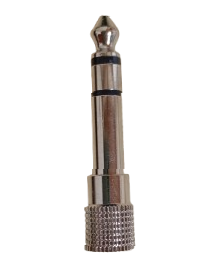
Before you start
Before Studio 24c is connected to Windows for the first time, install the ASIO driver. Install PreSonus’s manager, “Universal Control,” from the official site. The ASIO driver comes with it.
Words
| Word | Meaning |
|---|---|
| ASIO | A way to talk to the computer with less delay. Use it so the moment you play comes back as close as possible |
| Audio interface | Gear that takes an instrument or a mic into the computer, and sends the computer’s sound to headphones. It connects by USB |
| Self-mix | Feelism mixes your incoming sound with the band and returns it to the headphones. It starts on |
| Mixer (on the unit) | The knob on the front of Studio 24c. Turn it left for the sound the unit returns at once. Turn it right (Playback) and the sound coming back from the computer takes over |
Connection steps
1. Connect the instrument and the audio interface
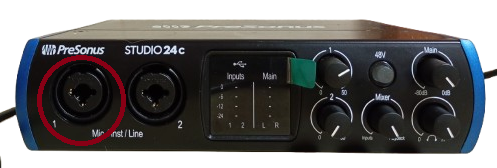
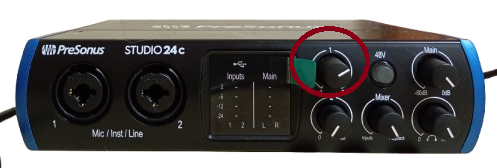
Connect the electric bass and 1 on the Studio 24c (the red outline in the photo) with an instrument cable.
2. Connect the audio interface and the PC
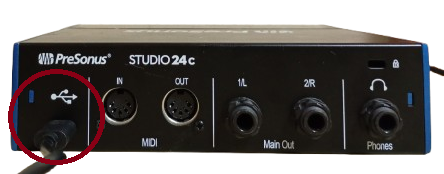
Connect the USB mark on the back of the Studio 24c (the red outline) to the PC with a USB cable.
3. Connect the headphones
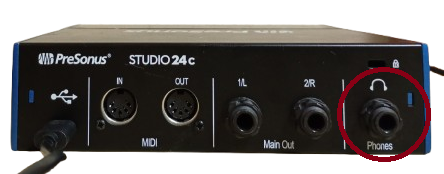
Plug the headphones into the headphone mark on the back of the Studio 24c (the red outline). This is not the jack on the computer.
4. Open Feelism and open Settings
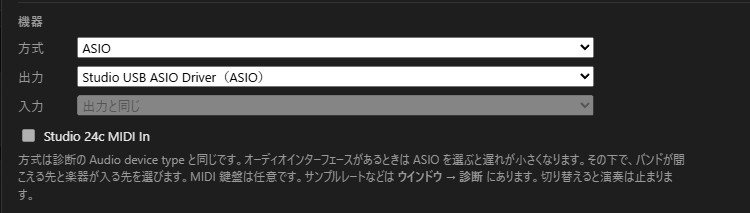
In Feelism, under Settings → Devices, pick the following.
- Driver: ASIO
- Output: the Studio 24c ASIO driver name
- Input: with ASIO this is often “Same as output” (leave it that way if so)
The “Studio 24c MIDI In” check is for when you connect a MIDI keyboard. This example is audio only (the instrument cable), so leave it off.
5. Pick a tune
Pick a tune such as Feelism Blues. The next steps check that sound comes back.
6. Check that sound comes back in the headphones
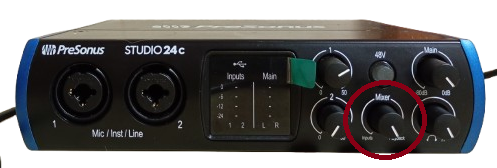
- Turn the Studio 24c Mixer knob all the way right (Playback). The instrument’s sound, after it has gone through the PC, then comes back in the headphones.
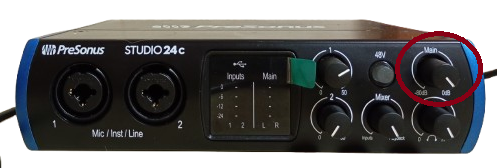
- Set the Main knob to about 12 o’clock. That is the speaker output level. With headphones only, the headphone level below matters more.
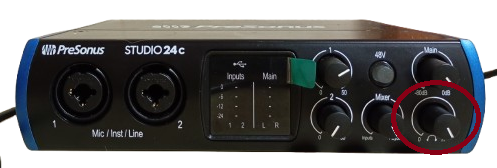
- Set the knob with the headphone mark to about 12 o’clock. That is the headphone level.
- Set the 1 knob (the number where you plugged the cable) to about 12 o’clock. That is the input gain.
- Open the app’s Mix button.

- Check the following.
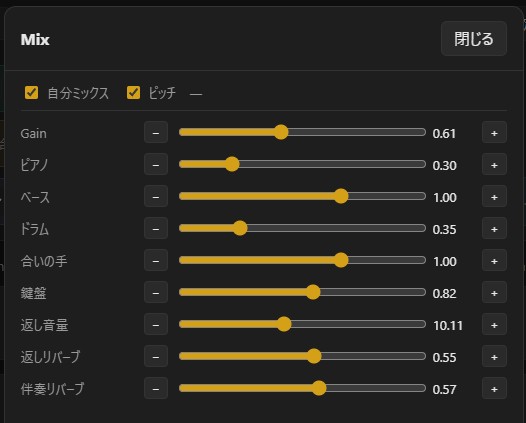
- Self-mix is on
- Levels such as Piano / Bass / Drums / Fills are not at 0 (that is a reason you would not hear the band)
- Pick a tune that comes with Feelism, such as Feelism Blues, and press Play.

- Check the following.
- You hear the band Feelism is playing, in the headphones
- When you play the instrument, you hear yourself in the headphones together with the band
- The In number at the top of the screen moves each time you play (if it moves, the sound has reached Feelism)
Other instruments
The path for the computer, the audio interface, and the headphones (steps 2–4 above) stays the same. What changes is where the instrument plugs in, and what you turn on in Feelism. See the page for that instrument.
Wind instruments
This is not a direct cable, the way the bass is. A mic (or a pickup on the horn) picks up the sound.
- Plug a clip mic, a stand mic, or the horn’s pickup into a mic input on the audio interface (on Studio 24c, 1 and 2 on the front)
- For a studio mic that needs no battery (a condenser mic), turn on 48V (Phantom) on the unit. A dynamic mic does not need it
- Feelism’s settings match the bass example: Driver set to ASIO. MIDI input can stay off
- When you play, check that In at the top of the screen moves
Self-mix starts on. If the delay bothers you, turn Self-mix off and move the unit’s Mixer toward Inputs so it returns at once. If both are left loud, you hear yourself twice, with two delays.
Details are in Wind instruments.
Digital piano (with its own sounds and speaker)
This is the path that sends “the sound itself.”
- From the digital piano’s LINE OUT (or OUTPUT. If those are missing, PHONES) into an input on the audio interface (even if there are left and right, one cable is enough for Feelism)
- Plug the headphones into the audio interface. If you plug them into the digital piano’s headphone jack, you will not hear the band
- Turn the digital piano’s volume up (this is often forgotten)
- Feelism’s settings match the bass example (ASIO. If you are not using MIDI, leave it off)
Details are in Keyboard (digital piano).
MIDI keyboard (no sounds of its own, and no speaker)
This does not send the sound itself. It sends which key you pressed, and how hard (MIDI). The sound you hear is on Feelism’s side.
- If the keyboard has USB … connect that cable straight to the computer (you do not need the MIDI jacks on the audio interface)
- If it only has a round MIDI OUT … from the keyboard’s MIDI OUT to MIDI IN on the back of the Studio 24c
- In Feelism, under Settings → Devices, check that keyboard (or “Studio 24c MIDI In”)
- Press a key and Feelism’s sound plays. If it does not, check that the device you picked is the right one, and that Keys in Mix is not at 0
If you want to play with the digital piano’s own sound, use the “Digital piano” connection above. Details are in MIDI keyboard.
String instruments with a pickup
Electric guitar and other instruments besides bass follow the same idea: an instrument cable into the instrument input. See String instruments with a pickup.